

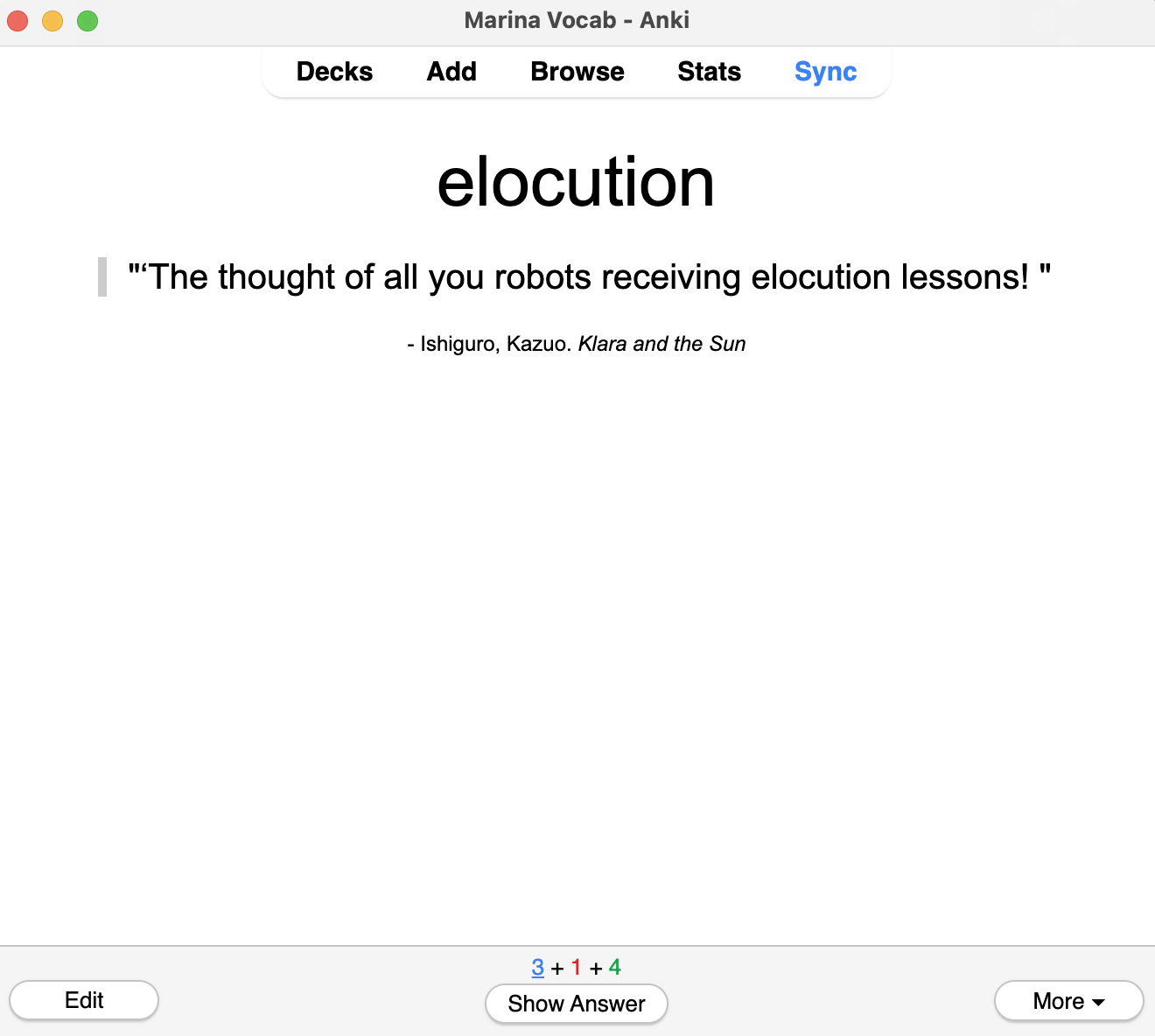
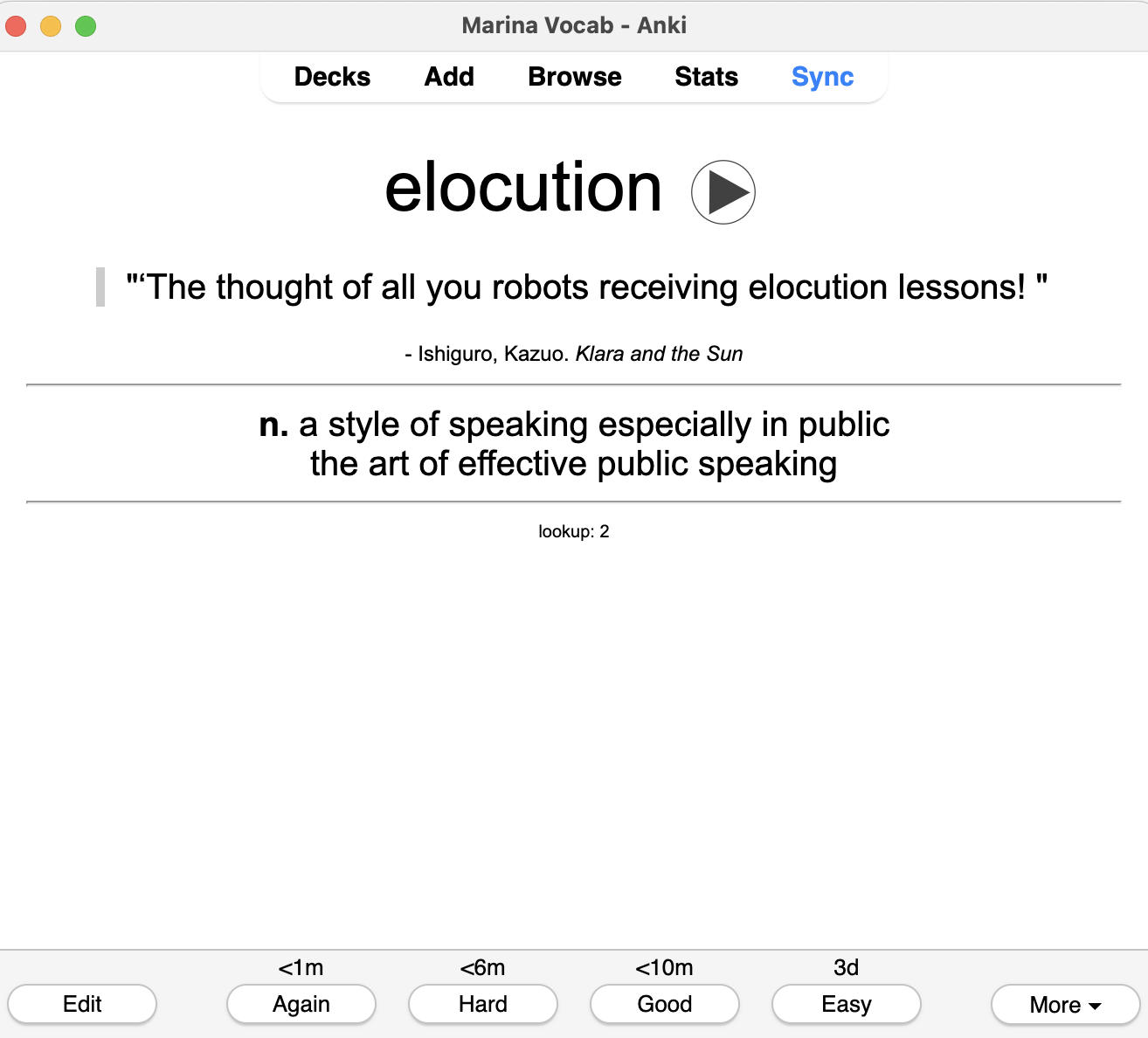
I’ve been wanting to improve my vocabulary and build it into a daily habit, so I’ve stumbled across an easy way to turn my Kindle vocabulary lookups to Anki flashcards. For the most part, I followed the guide and video here: Kindle Vocabulary Builder Export For Free. However, unlike the video guide to make an Anki deck I made some key differences since I wanted to retain each word, and it’s usage in the book I read it in.
Resources:
- vocab.db file from Kindle
- plug in Kindle to computer and search for vocab.db
- This tool: Kindle Vocabulary Builder Export For Free
- once you have the Excel, save it as a .csv and you’re ready to start make cards in Anki
- Anki app on Windows or MacOS
- Anki add-on: https://ankiweb.net/shared/info/2136497008
- Merriam-Webster Dictionary API key: https://www.dictionaryapi.com/
Making cards with all data from vocab.db file:
First, plug in your Kindle and grab the vocab.db file by searching for it. This part is covered here Kindle Vocabulary Builder Export For Free, where you will also convert your .db file to a .csv. Once you have the .csv you are ready to start making a deck.
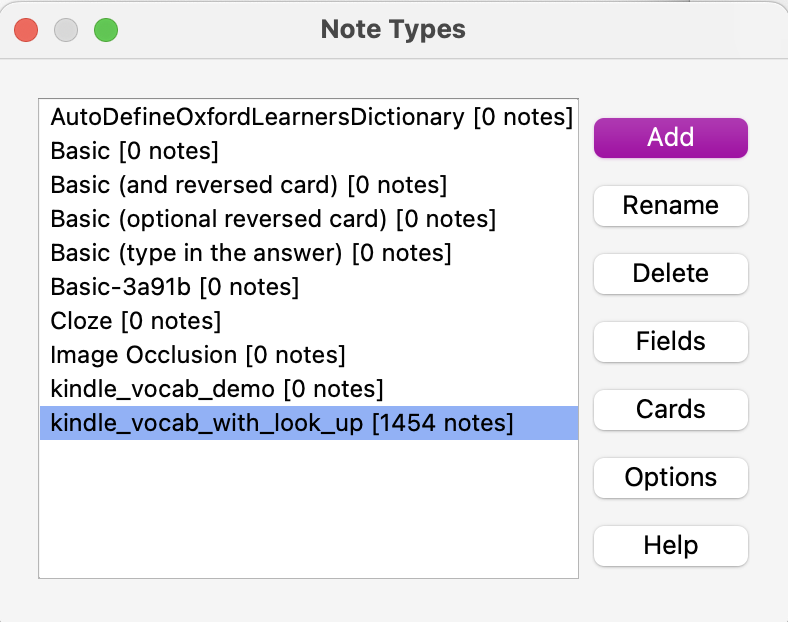
In Anki go to Tools > Manage Note Types.

In the Note Types window click “add” and make a new note type. I copied “Basic (and reversed card)” and renamed it to Kindle_vocab_with_look_up.
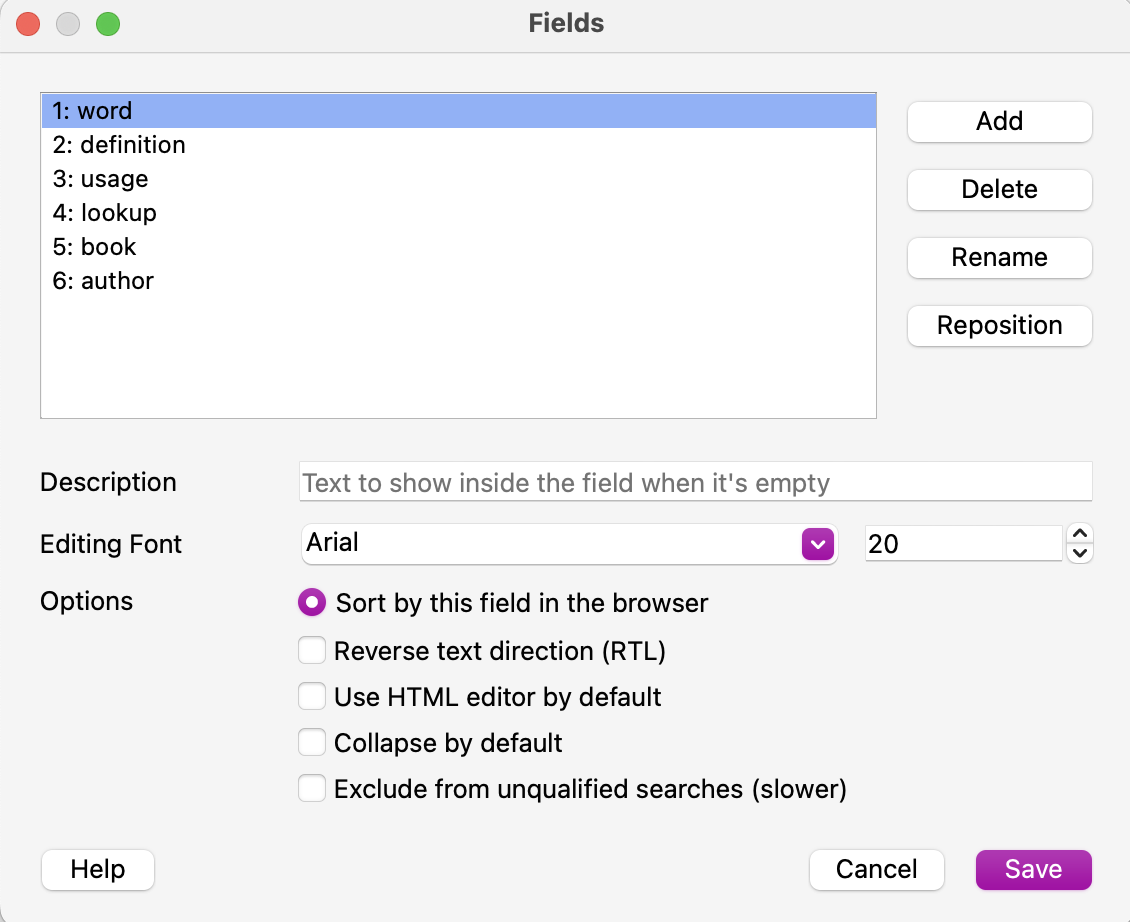
Add these fields.
Go back to the Note Types window and click “cards” which will default to viewing the front template. This is where you can add custom HTML and CSS.

I used the HTML and inline CSS below.
“Front Template”, copy and paste the code below.
<div style='font-family: "Arial"; font-size: 40px;'>{{word}}</div>

<blockquote>
  <div style="font-family: 'Arial'; font-size: 20px; border-left: 5px solid #ccc; padding-left: 10px;">
    "{{usage}}"
  </div>
</blockquote>

<div style='font-family: "Arial"; font-size: 12px;'> - {{author}}. <i>{{book}}</i></div>
“Back Template”. Copy and paste the code below.
{{FrontSide}}
<hr id=answer>

{{definition}}
<hr>

 <div style='font-family: "Arial"; font-size: 10px;'> lookup: {{lookup}}</div>
Go back to the main Anki window that shows all your decks. At the bottom, click “Create Deck” and name your deck.
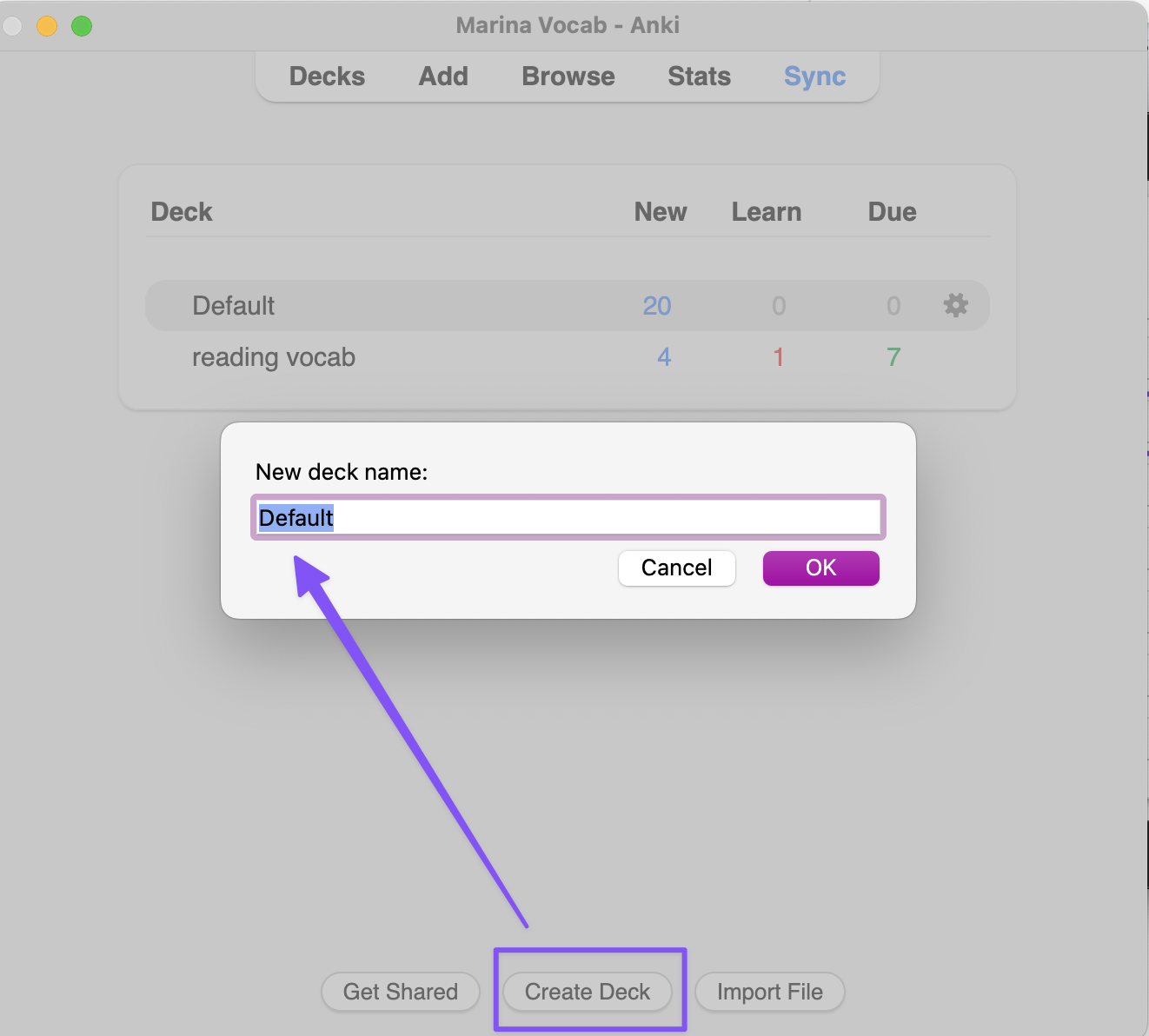
Now it’s time to finally upload your vocab.csv ! Click import file.

Navigate to your .csv file and change it to the following:
- Field separator: comma
- Note type: the note type you made in tools
- Deck: the name of the deck you just made in the last step
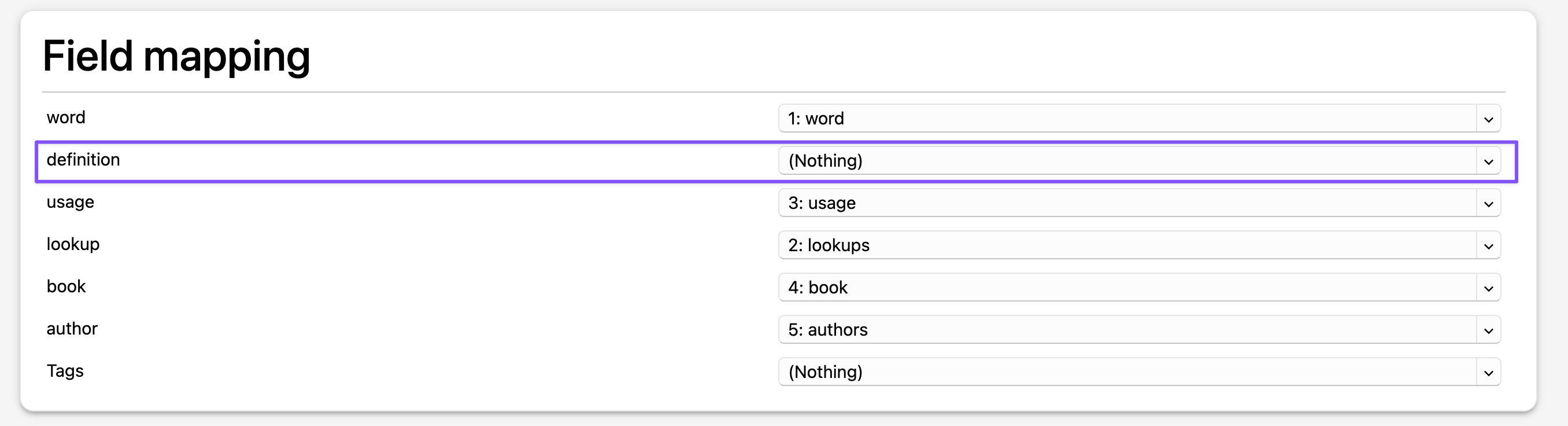
- In the “Field mapping” align each field to the .csv header. Note: definition should be mapped to “(Nothing)”.

Adding definitions with Anki add-ons
Add this add-on to Anki: https://ankiweb.net/shared/info/2136497008
As the add-on reads, you need to access ” Merriam-Webster’s Collegiate® Dictionary with Audio API to get definitions and pronunciations.”
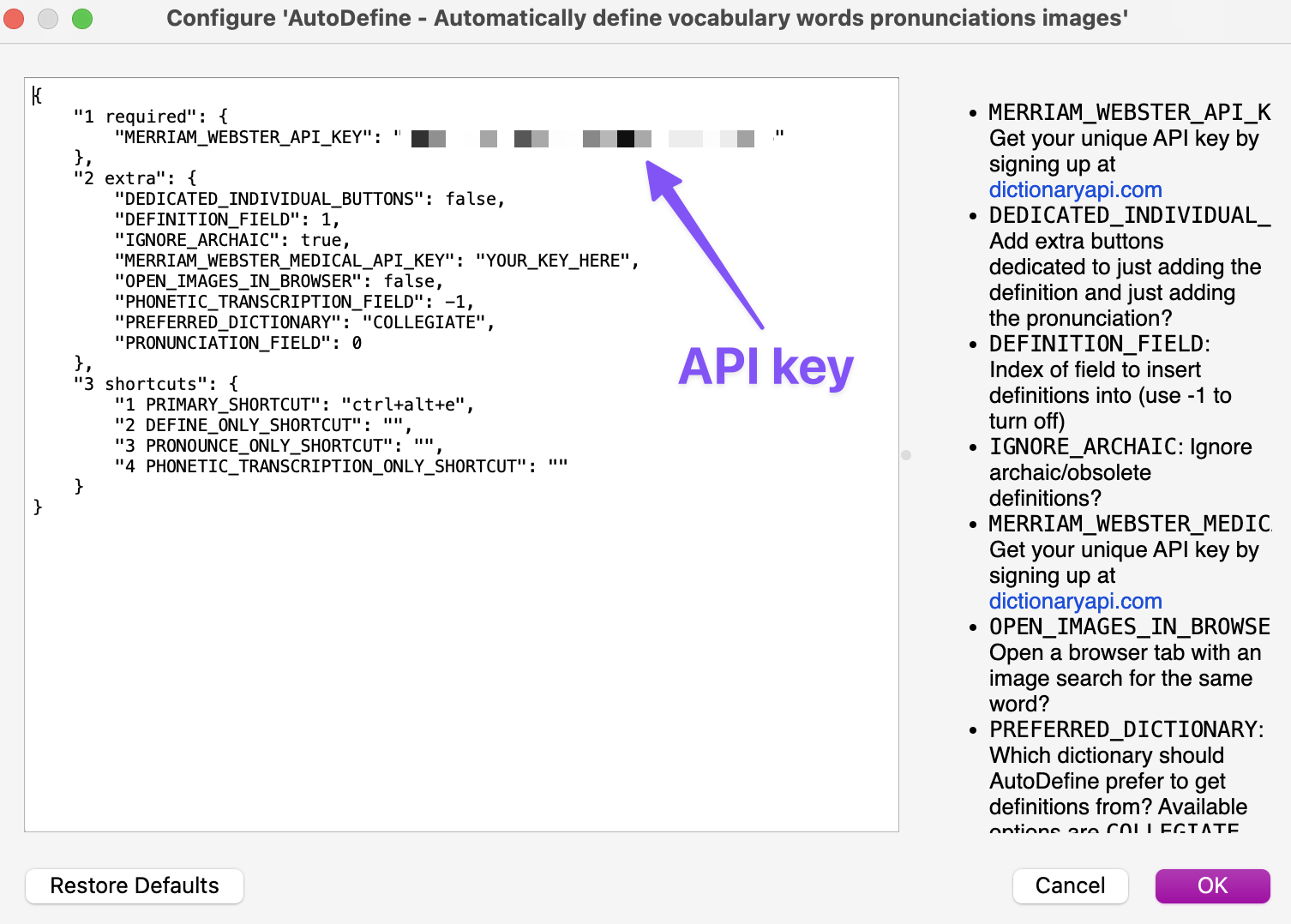
Sign up and get access to the dictionary called Merriam-Webster’s Collegiate® Dictionary with Audio. You’ll get the API key as soon as you are done signing up.
Paste your key here.
So tedious, but, you have to add the definition and pronunciation to each card by pressing edit > then the blue icon.
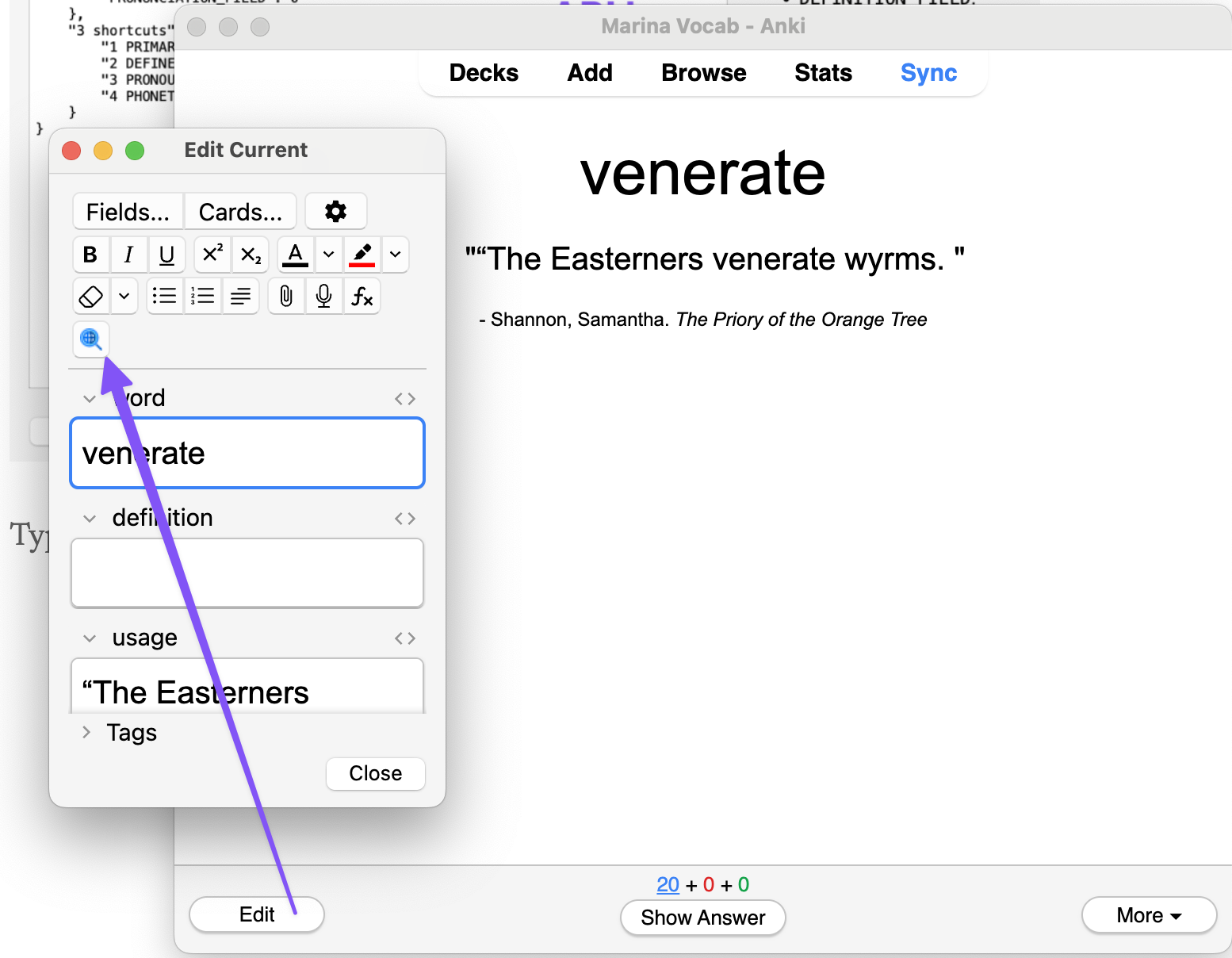
Ok and that is it for now. It’s pretty simple to do but, tedious if you have looked up many words like me (1200+ inlcuding multiple look ups).
I’ll try to see if I can automate adding the definition and pronunciation but, that’s as far as I have worked on this project today.

 commonbook
Leave a comment